 Spin & Paint
Saving and sharing your 3D artwork
A 3D piece has a problem a flat drawing does not: a single photo only shows one side of it. Here is how saving works, and the export that actually does the work justice.
Autosave: there is nothing to do
Every coloring and every puzzle writes itself to the device as you work. Close the app mid-stroke, take a call, let the battery die — the brush is where you left it and the puzzle board is intact.
This is worth knowing on day one because it changes how you use the app. There is no session to protect and no reason to push on when you would rather stop. It is also why "stop while you still want to continue" is practical advice here and not in most software.
Where your work lives. On your device. Finished pieces are written to local storage and stay there — they are not held in an account you could be locked out of. Your stars, settings and puzzle progress do sync between devices through iCloud, with no sign-in, but the paintings themselves stay on the device that made them.
Finding your finished work
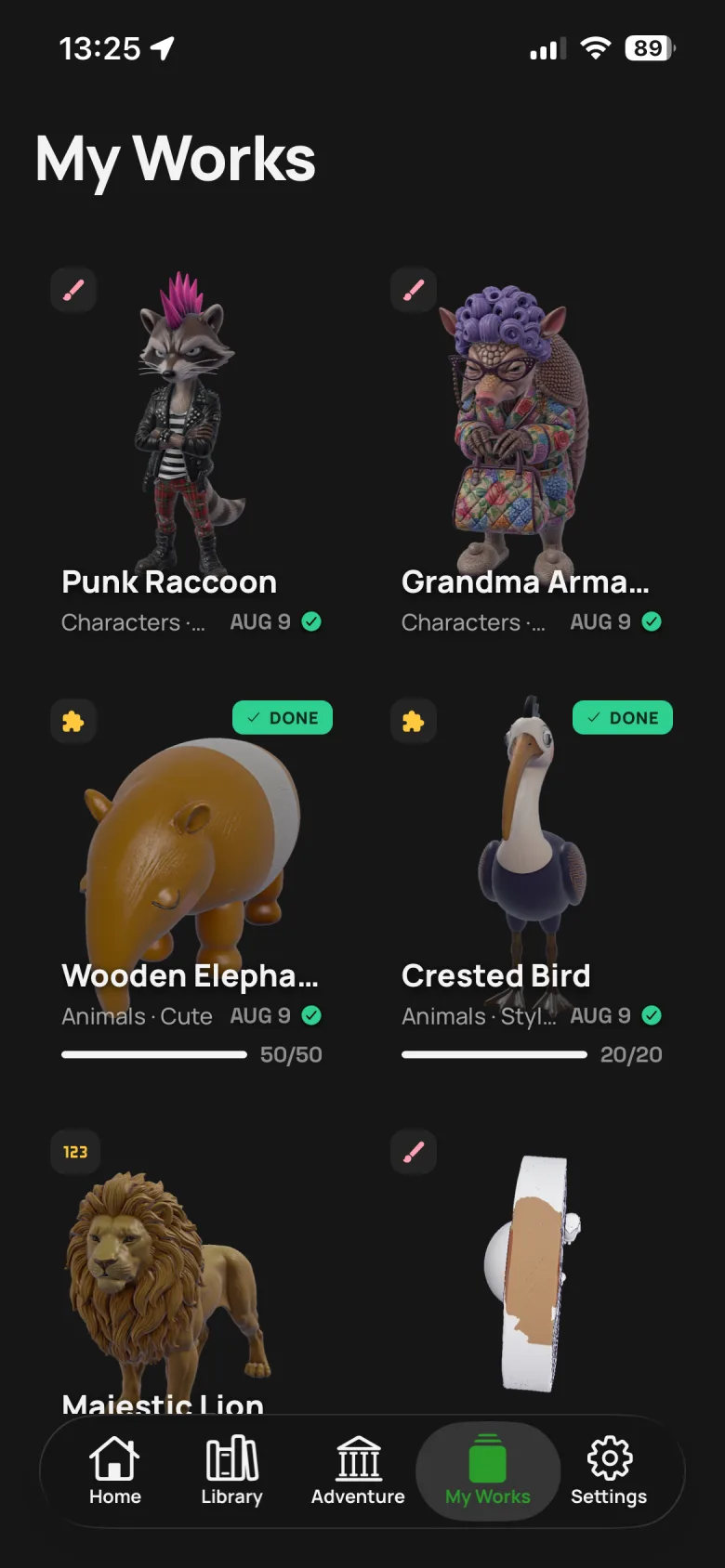
Everything you have started or finished is in My Works. Each item carries a badge showing which mode it was — a brush for free painting, a puzzle piece for a jigsaw, 123 for by-numbers — plus the category, the date, and for puzzles a progress bar reading something like 50 / 50.
Two ways out of the app
Save a still to Photos
Exports the model as it appears from your current angle, straight into your camera roll. Good for a quick share, a wallpaper, or a reference shot.
Two things worth doing first, because the export captures what you have set up:
- Choose the angle deliberately. Orbit until the piece reads well — usually three-quarters rather than dead-on.
- Pick the view mode. The same paint job looks quite different in shaded 3D, glossy, flat or comic cel-shading. Glossy tends to flatter a finished piece.
- Set the background. The scene background is a preference, from white through to near-black, and it changes the whole image.
Share a spinning video
This is the one to use for anything you spent real time on. It rotates the model through a full turn and records it, so the video shows every side — including the back of the head you painted that a still would never reveal.
It is also simply a better share. A 3D piece posted as a flat image reads as a drawing; posted as a turntable it reads as an object, which is what it is.
Paint with the export in mind. If you know a piece is destined for a spinning video, keep the back as finished as the front. It is the same advice as turning the model as you work, with a deadline attached.
Sharing a model with someone else
Every model has a share link that opens the artifact directly in the app for anyone who has it, and a web page for anyone who does not. Useful for "you should do this one" without a screenshot.
Make something worth spinning
Autosave as you work, export to Photos, or share a turntable video that shows every side.
Free to download · iPhone & iPad · Works offline