 Spin & Paint
Coloring with Apple Pencil on iPad
Plenty of apps say they support Apple Pencil. What most of them mean is that the Pencil can tap things. Four features separate real support from a thin finger — and each one changes something you can feel.
The four things that separate real support from a stylus that taps
1. Pressure
The Pencil reports how hard you are pressing, hundreds of times a second. An app that reads it can map that to brush size, opacity, or both — so a stroke can start feather-light, swell in the middle, and taper off. An app that ignores it gives you a uniform ribbon regardless of how you press.
This is the difference between shading and filling. Without pressure you cannot build up tone gradually; you can only lay flat color and change the opacity slider between strokes.
2. Tilt
The Pencil also reports the angle of the barrel. Tilt it and a real brush engine widens the footprint and softens the edge, the way the side of a crayon behaves against the tip. It is the feature people notice least in a list and most in the hand.
3. Palm rejection
To draw comfortably you rest your hand on the glass. If the app cannot tell your palm from the nib, that is a large unwanted blob in the middle of your work. Real support means the app inspects the pointer type of every touch and only paints with the one that is a pencil.
The related system setting is Only Draw with Apple Pencil. When it is on, finger touches should navigate rather than paint. An app that honors it lets you orbit with your fingers and paint with the Pencil, with no mode switching at all.
4. A hover cursor
Newer iPads sense the Pencil before it touches the glass. An app that uses this can show your brush footprint hovering over the surface, so you know exactly how big the mark will be before you commit to it. It removes the touch-undo-adjust loop that eats a surprising amount of time.
How to test an app in thirty seconds. Draw one slow stroke, pressing hard in the middle. If the line does not change width or darkness, it is ignoring pressure. Then tilt the barrel low and draw again. Then rest your palm down and draw. You will know.
What Spin & Paint does
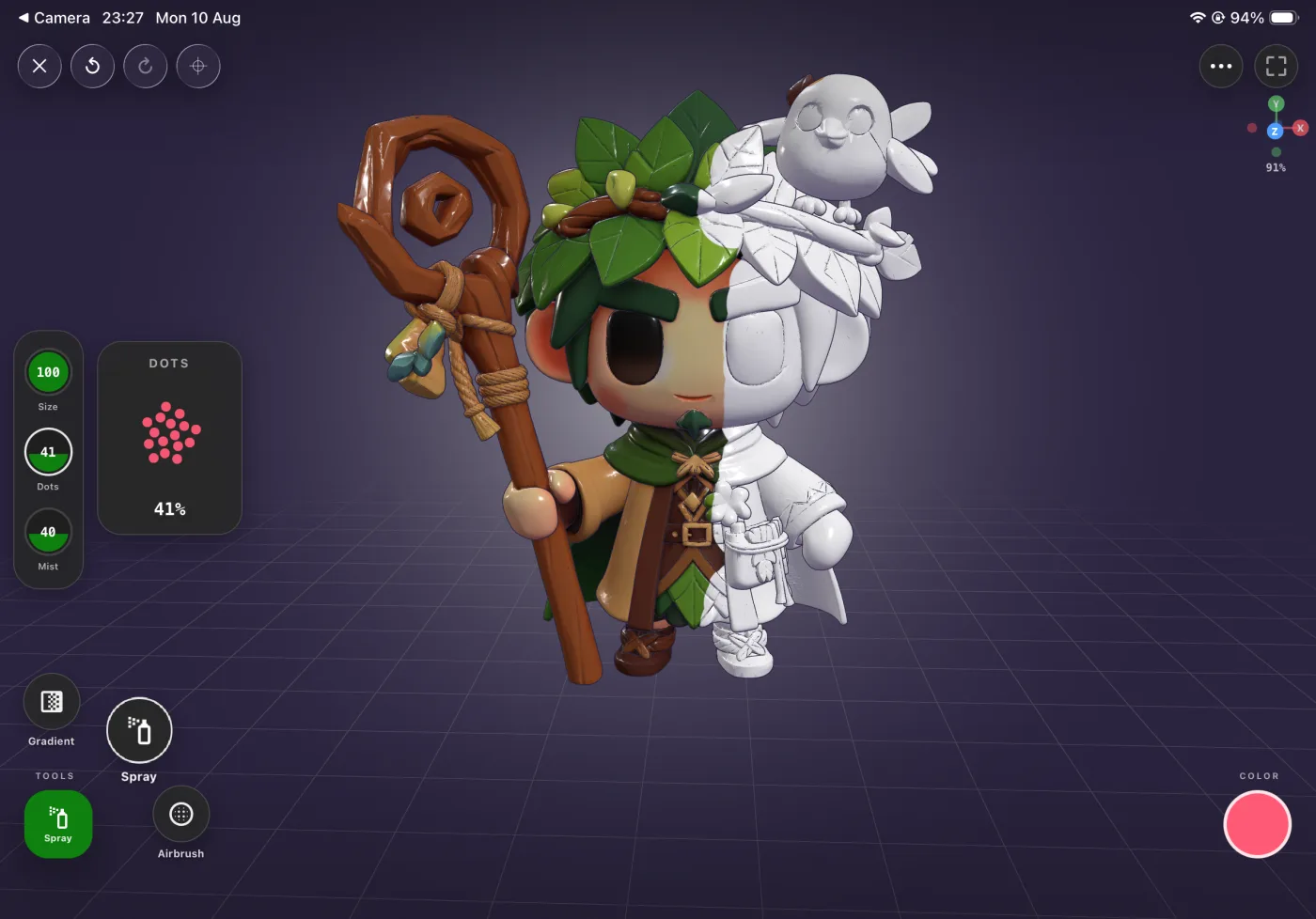
Spin & Paint is a 3D coloring book: you paint onto a sculpture you can spin, rather than into a flat outline. On iPad it runs full-screen in landscape, and it does all four.
- Pressure and tilt ride along with every stroke, so the twelve tools respond to how you hold the Pencil rather than only to the sliders.
- Palm rejection works by pointer type: a resting palm is told apart from the nib, so you can lean on the glass.
- The system "Only Draw with Apple Pencil" setting is respected, which on a 3D model is unusually useful — fingers orbit the sculpture, the Pencil paints it, and you never switch modes.
- A hover cursor shows the brush footprint before you touch down, clamped so it stays legible whether you are zoomed way in or way out.
Why 3D suits the Pencil particularly well
On a flat canvas, fingers and a Pencil compete for the same job. On a 3D model they divide cleanly: two fingers orbit and pinch-zoom the object, the Pencil does the painting. Your non-dominant hand turns the sculpture while your dominant hand works on it — which is, roughly, how you would actually paint a physical figure.
Setting up for a comfortable session
- Turn on Only Draw with Apple Pencil in iPadOS settings, so fingers are free to orbit.
- Choose your handedness in the app — there are left- and right-handed layouts for both painting and puzzles, so the controls are not under your drawing hand.
- Set the quality tier to match your iPad. There are four, from older devices to the newest.
- Learn the two-finger undo. Two-finger tap undoes, three fingers redo, up to 50 steps — much faster than reaching for a button mid-stroke.
Your stars, settings and puzzle progress follow you between iPhone and iPad through iCloud, with no account to create. Finished paintings stay on the device that made them.
Bring the Pencil
Pressure, tilt, palm rejection and a hover cursor, on a sculpture you can spin. Free to download.
Free to download · iPhone & iPad · Works offline